
How to Change Mouse Polling Rate: A Complete Guide to Checking and Adjusting Your Mouse Settings
Mouse polling rate is an important setting for gaming mice, especially for players who want responsive cursor movement and consistent in-game control. However, choosing a higher polling rate does not automatically mean better performance. The right setting depends on your gaming habits, monitor refresh rate, computer hardware, and whether you use a wired or wireless connection.
If you want to know how to change mouse polling rate, this guide explains what polling rate means, how to check your current setting, and how to adjust it through mouse software or hardware controls. It also covers the differences between 1000Hz and 8000Hz, wireless battery considerations, and how to configure compatible AULA gaming mice through AULA HUB.
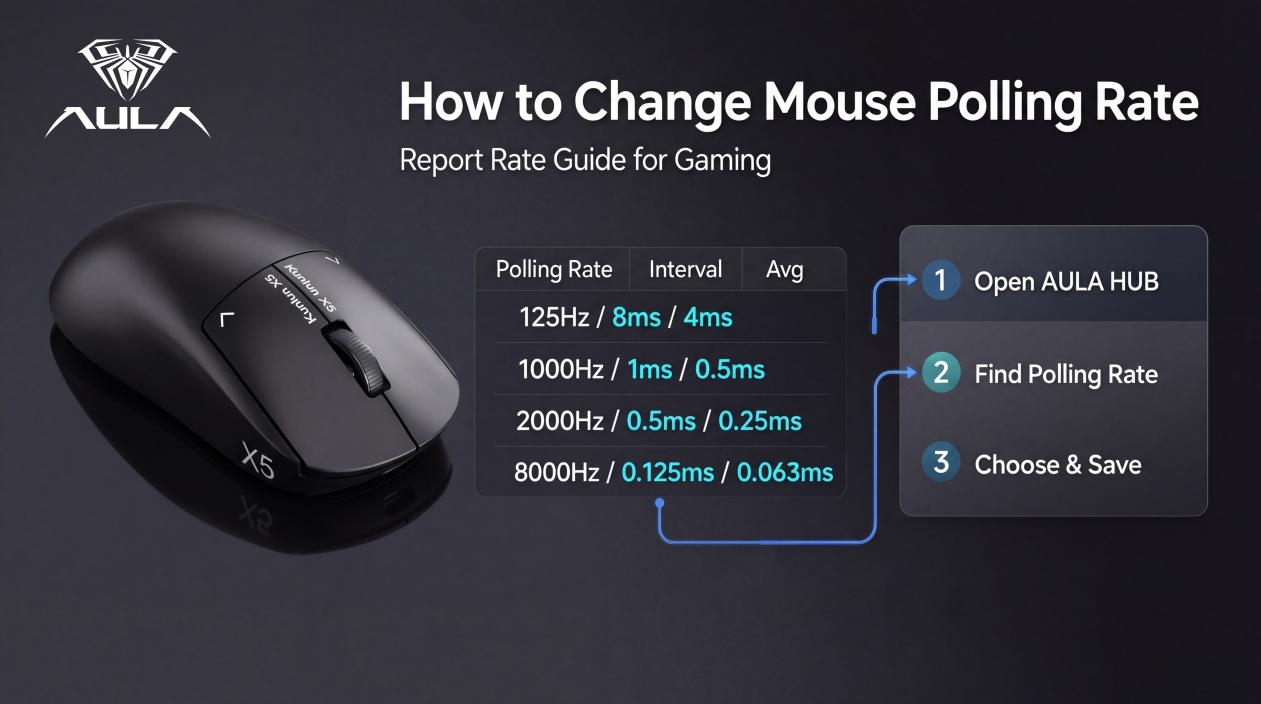
1. What Is Mouse Polling Rate?
Mouse polling rate, also known as mouse report rate, refers to how many times per second a mouse sends its position information to a computer. It is measured in Hertz (Hz).
A higher polling rate means the mouse reports its position more frequently, reducing the time between consecutive reports.
Here is how common mouse polling rate settings compare:
125Hz: One report every 8 milliseconds
250Hz: One report every 4 milliseconds
500Hz: One report every 2 milliseconds
1000Hz: One report every 1 millisecond
2000Hz: One report every 0.5 milliseconds
4000Hz: One report every 0.25 milliseconds
8000Hz: One report every 0.125 milliseconds
The difference becomes less noticeable as the polling rate increases. Moving from 125Hz to 1000Hz reduces the maximum report interval by 7 milliseconds. Increasing from 1000Hz to 8000Hz reduces it by only another 0.875 milliseconds.
An 8000Hz mouse also generates 8000 hardware reports per second. Although modern desktop systems can generally handle high polling rates, older four-core or six-core platforms may experience frame-time stuttering. Some older game engines can also show camera jitter or unusual rotation behavior.
Does a Higher Mouse Polling Rate Always Improve Gaming Performance?
Not necessarily. A higher mouse polling rate can reduce the interval between position reports, but the practical improvement depends on the complete gaming setup.
For everyday office work, 125–500Hz is generally sufficient. Casual gaming usually works well at 500–1000Hz, while 1000Hz is a practical starting point for competitive FPS games.
Players using high-refresh-rate displays may want to experiment with 2000Hz or 4000Hz. Settings of 4000–8000Hz are more relevant to specialized high-refresh-rate setups, but they also require suitable hardware and a stable connection.
It is worth remembering that DPI and polling rate are two different mouse settings. DPI determines how far the cursor moves in response to physical mouse movement, while polling rate determines how frequently the mouse reports its position to the computer.
2. How to Check Your Current Mouse Polling Rate
Before changing your mouse polling rate, check the current setting. There are two common methods: using the manufacturer's mouse software or running an online mouse polling rate tester.
Method 1: Check the Mouse Driver
The manufacturer's software is the most reliable way to confirm the configured polling rate.
Depending on the mouse brand, the setting may appear under different names:
Logitech: Report Rate in Logitech G HUB
Razer: Polling Rate under the Performance tab in Razer Synapse 4
SteelSeries: Engine in SteelSeries GG
CORSAIR: iCUE or CORSAIR Web Hub
AULA: AULA HUB for supported mouse models
Some mice have a fixed polling rate, so the setting may appear greyed out. This does not necessarily indicate a driver problem. It may simply mean that the particular model does not support changing this setting through software.
Certain mice also use physical buttons or button combinations to adjust the polling rate. For example, ZOWIE mice do not use a conventional configuration driver for this function. Their adjustment method can vary by product generation, so check the manual for the exact model.
Method 2: Use an Online Mouse Polling Rate Tester
An online mouse polling rate tester can help you observe how frequently mouse movement updates appear in your browser.
Common testing tools include:
MousePollingRateTest.com
ClickTester.net/polling-rate-test
These tools may display average, peak, stability, or other estimated polling-rate measurements.
However, an online polling rate tester does not directly read raw USB reports. The operating system receives mouse reports first, and the browser may combine pointer events or align them with the screen refresh rate. As a result, the displayed value represents browser-visible update timing rather than a confirmed hardware polling rate.
For more reliable comparisons:
Use the same browser for every test.
Keep the USB port and wireless receiver position unchanged.
Use the same connection mode.
Run the test three times.
Compare average results instead of relying on a single peak value.
Use the manufacturer's driver to confirm the configured polling rate. An online mouse polling rate tester is more useful for checking consistency and comparing performance before and after adjustments.
3. How to Change Mouse Polling Rate Step by Step
The adjustment method depends on whether your mouse supports software configuration or hardware-based controls.
Method 1: Change Polling Rate Through Mouse Software
For most gaming mice with dedicated configuration software, the process is straightforward.
Connect your mouse to the computer. For the initial setup, a wired connection is a practical choice.
Open the manufacturer's mouse driver or configuration software.
Locate the setting named Polling Rate or Report Rate.
Select the polling rate that matches your gaming setup.
Click Apply or Save if the software requires confirmation.
If an onboard profile is available, save the setting to the mouse.
Check the configured value again and test it in a game.
For most users, 500Hz or 1000Hz is a sensible starting point. Players using 240–360Hz displays can experiment with 2000–4000Hz, while 4000–8000Hz is more suitable for specialized high-refresh-rate setups.
If the polling rate option is unavailable or greyed out, check whether your particular mouse model supports adjustable polling rates.
Method 2: Change Polling Rate Using a Hardware Button
Some gaming mice allow users to change polling rate without installing software.
Depending on the model, this may involve pressing a dedicated button or holding a button while connecting or reconnecting the mouse.
However, not every mouse supports this function. Do not assume that the DPI button also changes the polling rate. DPI adjustment and polling rate adjustment are separate functions.
For mice with button combinations, follow the manufacturer's instructions carefully because the sequence may differ between product generations.
4. Wired vs. Wireless Mouse Polling Rate
The connection method can affect polling rate stability, power consumption, and overall usability.
Wired Gaming Mouse
A wired USB connection provides a direct connection to the computer without requiring a wireless receiver or battery. It is a practical choice for users who want to experiment with higher polling rates, including 4000Hz and 8000Hz on supported models.
It also avoids the battery-life reduction associated with high polling rates on wireless mice.
2.4GHz Wireless Gaming Mouse
A dedicated 2.4GHz receiver provides a wireless connection designed for gaming. Many models support 1000Hz or higher, although the available settings depend on the mouse and receiver.
For competitive gaming, receiver placement matters. Keep the receiver close to the mousepad, ideally around 20–30cm from the mouse, and avoid placing it behind USB hubs or near potential USB 3.x interference sources.
Bluetooth Mouse
Bluetooth is generally designed with power efficiency in mind. Its polling rate is typically lower and less consistent than that of a dedicated 2.4GHz gaming connection.
It is suitable for everyday office tasks, but it is not usually the first choice for competitive FPS gaming.
For users who want to balance responsiveness and battery life, the connection mode and polling rate should be considered together.
5. Best Mouse Polling Rate Settings for Different Uses
There is no single best mouse polling rate for every user. The ideal setting depends on the type of work or games you play and the hardware you use.
Office Work: 125–500Hz
For browsing, document editing, and general computer use, a lower polling rate is usually sufficient. It also helps reduce unnecessary system activity and wireless power consumption.
Casual Gaming: 500–1000Hz
This range provides responsive mouse movement for most casual games without requiring particularly demanding hardware.
Competitive FPS Gaming: 1000Hz
A 1000Hz polling rate is a practical default for many competitive players. It provides a 1ms report interval and generally places a relatively light load on the system.
High-Refresh-Rate Gaming: 2000–4000Hz
Players using 240–360Hz monitors can experiment with higher settings to see whether they notice a difference in their particular setup.
Specialized High-Refresh-Rate Setups: 4000–8000Hz
For supported equipment and 480Hz-or-higher displays, 4000–8000Hz may be worth testing. A wired connection can help avoid wireless battery limitations.
If you experience frame-time stuttering or inconsistent movement, try reducing the polling rate to 1000Hz or 500Hz. A stable experience is more important than selecting the highest available number.
6. Common Mouse Polling Rate Problems and How to Fix Them
Changing mouse polling rate is usually straightforward, but configuration problems can occur.
Problem: The Mouse Is Not Detected by the Software
An outdated driver, firmware issue, or wireless connection problem may prevent the software from recognizing the device.
Try connecting the mouse with a cable, updating the relevant software, and restarting the application or computer.
Problem: The New Polling Rate Is Not Saved
Some configuration tools require users to click Apply or Save. Others save settings automatically.
Check the software instructions and confirm whether the new value remains active after reconnecting the mouse.
Problem: Wireless Polling Rate Is Unstable
Receiver placement and wireless interference can affect connection consistency.
Move the receiver closer to the mousepad, try another USB port, and avoid USB hubs or crowded connection areas.
Problem: The Game Stutters at 4000Hz or 8000Hz
High polling rates increase the number of reports processed by the system. Older CPUs or certain game engines may not handle these settings consistently.
Reduce the polling rate to 1000Hz and test again. If necessary, try 500Hz to determine whether the issue is related to the higher setting.
In many cases, these problems are related to configuration or compatibility rather than a defective mouse.
7. How to Adjust Mouse Polling Rate with AULA HUB
For users with compatible AULA gaming mice, AULA HUB provides a dedicated configuration tool for checking and adjusting supported device settings.
AULA HUB is available through the official AULA website:
https://www.aulastar.com/aula-hub/
The web-based driver works with Chrome, Edge, and Opera. A Windows client is also available.
How to Use AULA HUB
Connect your AULA mouse to the computer. For initial configuration, start with a wired connection.
Open AULA HUB in a supported browser or launch the Windows client.
Select the connected AULA mouse.
Locate the polling rate control in the actual software interface. The label and menu position may vary, so refer to the interface displayed for your device.
Choose a supported value for the active connection mode.
Confirm the setting in AULA HUB and perform a short test in a game.
The web version saves settings automatically, while the Windows client should be used according to the save controls shown in its interface.
AULA V9 Series Polling Rate Specifications
The following configurations are provided for the listed AULA V9 Series variants:
V9 / V9+: Up to 8000Hz wired; 1000Hz in 2.4GHz mode; 300mAh battery.
V9 Pro / V9 Pro+: Up to 8000Hz wired and 2.4GHz; 600mAh battery.
V9 Ultra / V9 Ultra+: Up to 8000Hz wired and 2.4GHz; 600mAh battery.
Available polling rates depend on the specific model and connection mode. Always confirm the supported options in AULA HUB before making adjustments.
It is also important to distinguish DPI settings from polling rate settings. On the AULA V9 series, DPI indicator colors represent different DPI levels:
400 DPI: Red
800 DPI: Blue
1600 DPI: Purple
3200 DPI: Green
6400 DPI: Yellow
26000 DPI: Cyan
These colors indicate DPI levels, not polling rate levels. The DPI button should not be treated as a polling rate switch.
Which AULA Mice Are Compatible with AULA HUB?
AULA HUB supports the following mouse models:
V1, V3, L9, L9 ULTRA, V9, V9+, V9 Pro, V9 Pro+, V9 Ultra, V9 Ultra+, V9 Max, V9 Max+, X9, X9 Pro, X9 Ultra, X9 Max, and SC800 MAX.
The AULA V9 Series and X9 Series support up to 8000Hz polling rate over a wired connection, according to the listed specifications. Check the individual model information for connection-specific limitations.
8. Frequently Asked Questions About Mouse Polling Rate
1. What Is Mouse Polling Rate?
Mouse polling rate is the number of times per second a mouse reports its position to a computer. It is measured in Hertz (Hz). For example, a 1000Hz mouse sends up to 1000 reports per second.
2. How Do I Change My Mouse Polling Rate?
Open your mouse configuration software, find the Polling Rate or Report Rate setting, select the desired value, and save the change if required. Some supported mice also use hardware buttons or button combinations.
3. Is 1000Hz or 8000Hz Better for Gaming?
A 1000Hz polling rate is a practical default for most players. An 8000Hz setting reduces the report interval to 0.125ms, but it also generates more frequent hardware reports and may increase system load. The difference depends on your monitor, computer, game, and connection.
4. Can an Online Mouse Polling Rate Tester Show the Actual Hardware Rate?
Not directly. An online tester measures browser-visible mouse updates rather than raw USB reports. Use the manufacturer's driver to confirm the configured hardware setting.
5. Does Mouse Polling Rate Affect Wireless Battery Life?
Yes. Higher polling rates can significantly reduce wireless battery life because the mouse sends reports more frequently. If battery life is a priority, 500–1000Hz is a practical range to consider.
6. Does DPI Change Mouse Polling Rate?
No. DPI controls how far the cursor moves in response to physical movement. Polling rate determines how frequently the mouse reports its position. They are separate settings.
7. Why Is My Mouse Polling Rate Setting Greyed Out?
The mouse may have a fixed polling rate or may not support changing the setting through its current software. Check the specifications and user manual for your exact model.
8. Which AULA Mice Work with AULA HUB?
AULA HUB supports multiple models, including the V1, V3, L9, V9, X9, and SC800 MAX series. The available settings depend on the specific mouse model and connection mode.
Find the Right Polling Rate for Your Gaming Setup
Adjusting mouse polling rate is not simply about choosing the highest available setting. A suitable configuration should balance responsiveness, system compatibility, connection stability, and battery life. For most users, 1000Hz is a reliable starting point. Players with high-refresh-rate displays can experiment with 2000Hz, 4000Hz, or higher settings on compatible equipment, then compare the results in actual games. For compatible AULA gaming mice, AULA HUB makes it easier to check supported settings and configure the device. Explore the AULA V9 Series gaming mouse to learn more about its high polling rate capabilities, or visit the AULA blog for additional guides on gaming peripherals and setup optimization.