
Make sure the mode switch is set to BT mode.
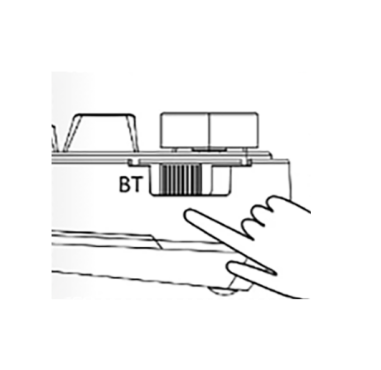
Before pairing, press and hold Fn + 1 for about 3 seconds until the green indicator starts flashing rapidly, indicating that the keyboard has entered Bluetooth pairing mode.
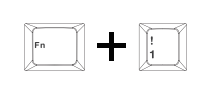
Turn on your Bluetooth device and find "EPoMAKER -EA75-1/2/3", then connect. When the keyboardis connected to the Bluetooth device, the indicator stops flashing and the connection is done
Press Fn+1/2@/3# to toggle between the Bluetooth devices 1/2/3.
Make sure the keyboard is switched to 2.4GHz Wireless mode.
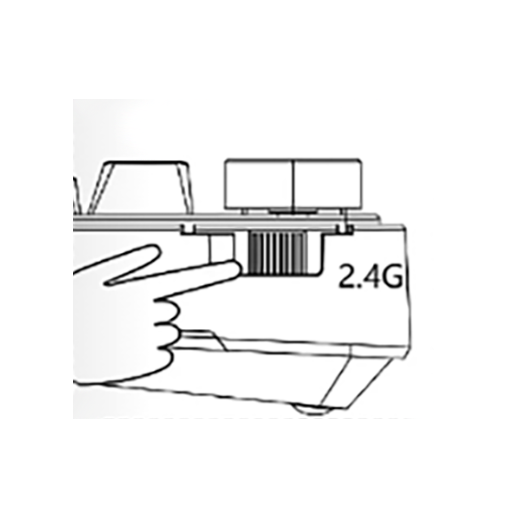
Press and hold Fn + ~ for about 3 seconds until the green indicator flashes rapidly, indicating that the keyboard has entered pairing mode.
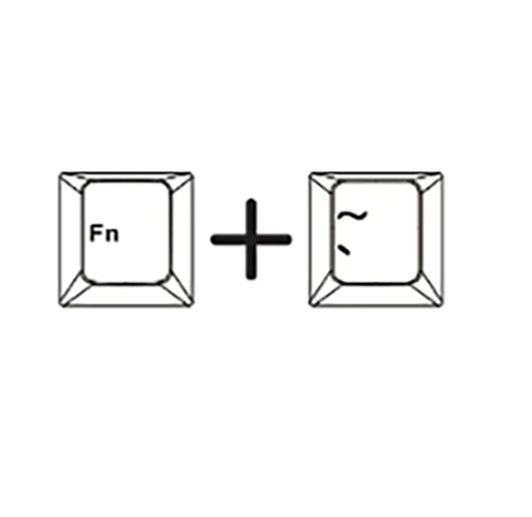
Hold Fn+ - for 3-5 seconds till the key blinks fast in green, the keyboard is ready to connect.
insert the 2.4G dongle to your device. When the indicator stops, the connection is done.
Connect the 2.4GHz receiver to a USB 2.0 port to minimize interference.
Use a USB port that is away from other wireless receivers whenever possible.
Avoid connecting the receiver through a metal USB hub.
Try re-pairing the 2.4GHz receiver:
① Switch the keyboard to 2.4GHz mode.
② Press and hold Fn + ~ for 3 seconds until the cyan indicator flashes rapidly, indicating pairing mode.
③ Unplug and reconnect the USB receiver. If pairing is successful, the ~ key's cyan indicator will stay on for 2 seconds.
Check whether the keyboard battery is too low. If so, charge the keyboard first.
If the battery level is normal, check whether the Windows key is locked. Press Fn + Win to unlock it.
If only a single key is affected, clean the switch area or replace the switch with a spare one.
If the entire keyboard is unresponsive, check the cable connection or try a different USB port. For multi-mode keyboards, also verify that the correct connection mode is selected.
If the issue persists, press and hold Fn + Esc for 5 seconds to restore factory settings.
If you mainly use the keyboard in wireless mode, it is recommended to reduce the backlight brightness or turn off the lighting to extend battery life.
Use a 5V/1A USB charger to charge the keyboard.
Visit the AULA official website at www.aulastar.com.
Go to Downloads from the homepage, select your keyboard model, and click the Google Drive link to download the corresponding driver.