
S98 PRO
(1) Why can’t my Bluetooth connect?
1. First, check if the switch is set to [BT] mode.
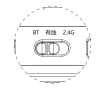
2. Before pairing, long press the Fn + 1 combination key for 3 seconds until the indicator light changes from slow flash to fast blue flash. Then turn on your computer’s Bluetooth and search for the keyboard model.
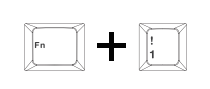
3. Make sure the Bluetooth name matches the product. If the connection is successful, the blue light will stay on for 3 seconds and then turn off.
(2) Why can’t my 2.4G connection work?
1. Check if the keyboard is switched to 2.4G mode.
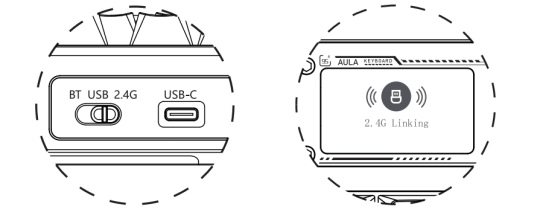
2. Make sure the USB receiver is inserted into the computer’s USB port.
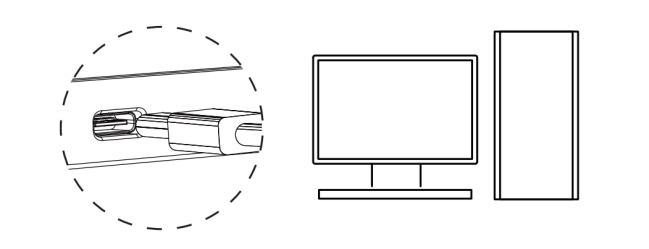
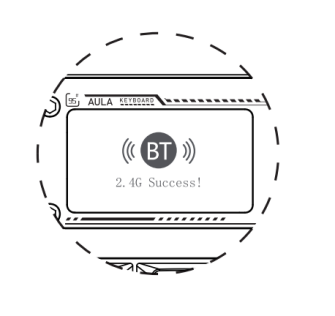
The screen display "corresponding to the main menu on thescreen The screen displays "2.4G Success! ", indicating successfulpairing, Highlight the 2.4G icon corresponding to the main menu,on the screen.
Note: During manual pairing, keep the keyboard close to the receiver. Always put the keyboard into pairing mode before inserting the receiver.
(3) Why is my 2.4G connection unstable?
1. Connect the 2.4G receiver to a USB 2.0 port to reduce interference.
2. Choose a port far from other receivers if possible.
3. Do not connect the 2.4G receiver to a metal hub.
4. Try re-pairing the 2.4G receiver following these steps:
Switch the keyboard to 2.4G mode.
Long press Fn + ~ for 3 seconds to enter 2.4G pairing mode (cyan light flashes).
Unplug and reinsert the 2.4G receiver. If pairing is successful, the ~ key’s cyan light will stay on for 2 seconds.
(4) What should I do if some keys are not working or typing automatically?
1. Check if the keyboard battery is low; if so, recharge it.
2. Ensure the keyboard mode matches the connected device system: Fn + W for Windows, Fn + Q for Android, Fn + E for Mac. Check if the Windows key is locked by pressing Fn + Win to unlock. Refer to the manual or function card for details.
3. If only individual keys are not working, clean dust or try replacing with spare switches.
4. If the entire keyboard is not working, check the connection or try another port. For multi-mode keyboards, make sure the connection mode is correctly selected.
5. If none of the above works, long press Fn + Esc for 5 seconds to restore factory settings.
(5) How to reduce power consumption and charge properly?
For long-term use in wireless mode, lower the backlight brightness or turn off all lights to save battery. It’s recommended to use the keyboard’s original cable to connect to a computer for charging while in use.
Important: Do not use any fast-charging devices, as this may cause irreversible damage to the keyboard.
(6) Where can I download the drivers?
You can download drivers from the official AULA website www.aulastar.com. On the homepage, click Downloads, find the corresponding model page, and click the Google Drive link. There you can access the driver for your specific keyboard model.